


FTP/SFTP Connection Guide with FileZilla
A practical guide to managing your site files safely
Quick Start
Follow these simple steps to connect to your server in less than 5 minutes.
Step 1: Install FileZilla
FileZilla is a free and reliable file transfer client. If you do not have it installed, download it first.
Download Link
Download FileZilla Client (not Server) from the official website.
Installation Instructions:
- Run the file: Open the file you downloaded.
- Follow the guide: Press "Next" on the installation screens. Attention, reject any suggestions for installing additional software (adware).
- Completion: Once the installation is finished, FileZilla is ready.
Step 2: Fill in the connection details
To connect, you need the FTP/SFTP data given to you by your hosting provider.
Where do I find the connection details?
They are usually on the welcome email from hosting company or within the hosting control panel (cPanel, Plesk, etc.).
The 4 key elements:
It's the server address. It can be:
- Your domain name (e.g.,
example.com) - A sub-domain (eg,
ftp.example.com) - An IP address (e.g.,
192.168.1.1)
The only name you've been given for the connection.
Your password. Type it carefully.
The connection port. If you leave it blank, FileZilla uses the default ports:
- FTP: Port 21
- SFTP (Recommended): Port 22
SFTP > FTP
Always prefer it SFTP (SSH File Transfer Protocol) instead of FTP because it is encrypted and much more secure.
Fill in these items in the "Fast Connection" line at the top of FileZilla and press "Enter" or "Fast Connection" button.
Step 3: Understand the FileZilla interface
Once you log in, you'll see 4 main windows.
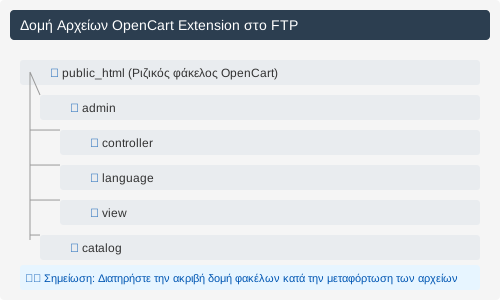
- Local Folder (Left): The files and folders on your computer.
- Remote Folder (Right): The files and folders on your server.
- Transfer queue (bottom): The files waiting to be transferred, the failed ones and the completed ones.
- Log panel (top): The commands and answers between your computer and server.
Advanced Functions
Tools that will save you time and make your job easier.
Instead of typing the details each time, save them!
- Open the Site Manager:
File > Site Management(or press Ctrl+S). - New Location: Press the "New Location" button and give a name (e.g., "My Eshop").
- Please fill in the information: On the right side, enter Host, Port, Username, Password and select the protocol (SFTP).
- Connection: Press Connect to connect directly.
Why is it useful?
You can save multiple servers and connect to one click, without remembering passwords.
This function helps you to have the same folder structure open locally and remotely.
How to activate it:
Go to the menu View > Synchronized Browse. When you navigate to a folder on one side, FileZilla tries to open the same folder on the other.
You can edit a text file (e.g., .php, .css, .js) directly on the server.
- Right click in the server file.
- Select "View/Edit".
- The file will open in your default editor.
- Once you save it, FileZilla will ask you if you want to upload it back to the server.
Attention!
This function is powerful and dangerous. Always hold a backup before making changes to live files!
Problem Solving
The most common FileZilla connection problems and how to fix them.
Check the following:
Possible causes:
- The server is offline.
- There's a network problem between you and the server.
- A firewall is blocking the port you are using.
- In Site Manager, try changing the connection function from "Default" to "Active" or "Passive".
Check:
- Correct folder: Make sure you upload files to the correct folder (usually
public_html,www, orhttpdocs). - Replacement: Make sure you replace old files with new ones.
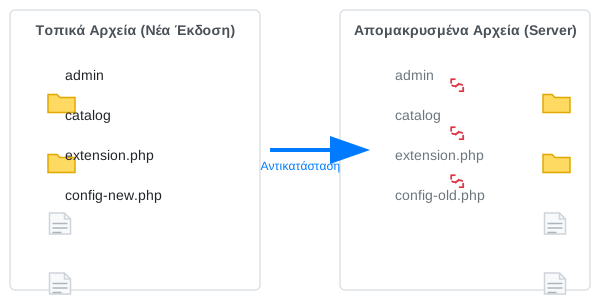
- Cache: Clean your browser cache (Ctrl+F5) and any cache plugin you have on your site.
Do you need help managing your files?
We offer specialized support to ensure that your site works perfectly.