Our company opens in about 1 hour at 09:00 UK time. Send your request now and we will review it when we are back.

Safe OpenCart upgrade

OpenCart Upgrade Guide

Upgrade without rushing: prepare backups, map extension risk, replace only the correct files, and verify frontend, admin, and critical flows before you reopen the store.

  • Full backup before every change
  • Check extensions and theme before replace
  • Use a low-traffic maintenance window

Important Warning

  • Create full backup of your store
  • Check the compatibility of your extensions with the new version
  • Schedule upgrade to low traffic hours
What stays out of the replace

The critical part is what you do not touch

In an OpenCart upgrade the main risk is not only uploading the new package, but overwriting config, storage, or a custom theme layer by mistake.
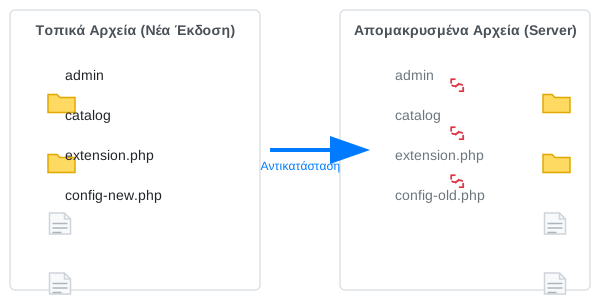
OpenCart upgrade file replacement diagram
config.php Keep the main store config out of the overwrite pass
admin/config.php Keep the admin config separate as well
system/storage/ Do not overwrite the storage layer or runtime data
Before the store enters maintenance

Preparation

The goal of preflight is not just downloading the new version. You need to know whether the store, its extensions, and your level of access are enough for a safe upgrade.

Compatibility check

Review what changes in the new release and whether the theme or extensions need updates before you move forward.

  • New version requirements
  • Compatibility of extensions
  • Theme compatibility

New release package

Download, verify, and extract the new release before you touch the production store.

  • Download New Version
  • Verify Files
  • Decompress files

Access and tooling

Make sure you have full file, database, and admin access so the process does not stop halfway through.

  • FTP/SFTP access
  • Database access
  • Administrator permissions
Before anything changes

Create backups

Backup is not a checkbox. It is the rollback line when theme changes, extensions, or database migrations do not behave the way you expect.

SQL

Database backup

Export a full database backup with phpMyAdmin or CLI

mysqldump -u [username] -p [database_name] > backup.sql

File backup

Create a backup of all store files

  • System Files
  • Product Images
  • Modified Files
  • Extensions and themes

Change log

Create a list of all custom changes you have made:

  • Modified core files
  • Custom themes
  • Installed Extensions
The working sequence

Upgrade workflow

Follow the order without skipping stages. Shortcuts here usually cost more time during troubleshooting later.

01

Enable maintenance mode

Enable maintenance mode from the admin panel:

  • Log in to the admin panel
  • Go to System → Settings → Edit
  • On the tab General , change "Store Active" to "No"
  • Save changes
02

File Replacement

Upload the new release files:

  • Connect via FTP to your server
  • Upload the new files replacing the old ones
  • Keep the files listed above
Critical Warning
  • Keep the main config.php out of the overwrite pass
  • Keep admin/config.php out of the overwrite pass
  • Do not replace the system/storage/ directory
  • Custom theme files
03

Run Upgrade

Run the upgrade script to update the database:

  • Visit it https://your-domain/install/ from browser
  • The OpenCart upgrade wizard will appear
  • Follow the steps in the wizard to update the database
  • Confirm that all updates have been successfully completed

The update script automatically recognizes the current version of OpenCart and performs the necessary changes in the database.

04

Cache Cleaning

Clear all cache files to ensure that the store works with the new files:

# Command to clear cache from terminal rm -rf /path/to/your/store/system/storage/cache/*
  • Delete all files in the folder
  • Delete any third party extensions cache
  • Clean your browser cache
Checks before the store goes live again

Post-Upgrade Checks

After completing the upgrade, perform the following checks to make sure everything works properly.

Frontend Functionality Check

  • Browse categories and products
  • Search products
  • Add products to cart
  • Checkout
  • Write New Client & Connection

Control Admin Panel

  • Connection to the management environment
  • Control panel (dashboard)
  • Create New Product
  • Check reports and statistics

Check Extensions

  • Operation of payment methods
  • Operation of shipment methods
  • Function custom modules and vQmods
  • Check theme and customizations
Close the process properly

Final Step - Completion

After completing all the above checks and making sure everything works properly:

Only close the upgrade after these final checks pass

  • Disable maintenance mode (Set "Store Enabled" to "Yes")
  • Delete the install folder for security reasons
  • Create a new full backup of the updated store
Need a safer handoff?

The upgrade can be done without production risk

If the store is live, uses a custom theme, or carries several extensions, we can handle backups, compatibility review, the upgrade itself, and the final checks without guesswork.